
ExcelSQL = Excel⇔DB data conversion tool
The most convenient Excel to SQL Server data conversion tool available anywhere.
When developing an application that uses a database, there are many ways to submit initial data or sample data for testing, but the most popular method is to submit data created in Excel. The most popular method is to use functions and cell reference formulas to create a large amount of data, and then put it into a database.
Emotion Software’s ExcelSQL is a tool that converts the Excel data into SQL and enables batch data entry, modification, or deletion into the database.

Features of ExcelSQL
The first step in this tool is to create an Excel workbook for data entry. By specifying the database to connect to, selecting multiple tables to create input sheets on the ExcelSQL screen, and instructing Excel to create an Excel workbook for input, it will instantly create an Excel workbook for data input in the specified path.
The user can create data on the input sheet in the created workbook by any method (function, cell reference formula, continuous data creation, etc.), and then specify the workbook again in ExcelSQL and execute SQL creation, which will also create SQL files for multiple data registration in an instant.
ExcelSQL parses and retains the item attributes of the target table, so there are no type conversion errors when creating the SQL. It applies convenient and straightforward rules for setting input values, such as the following.
- Create SQL that processes data consisting of only numbers as strings if the table item to be registered is of character type.
- ExcelSQL automatically skips this “‘” from the input value.
- ExcelSQL automatically skips this ”. If the input value of a cell contains a newline code, the string including the newline code will be set in the cell as it is. As a result, the table item to be registered will also be set to a string with a line feed code.
- Items that are set automatically, such as table-side identities, default values, triggers, etc., can be excluded from the settings when creating SQL by specifying them on the input sheet.
Introduction to Usage
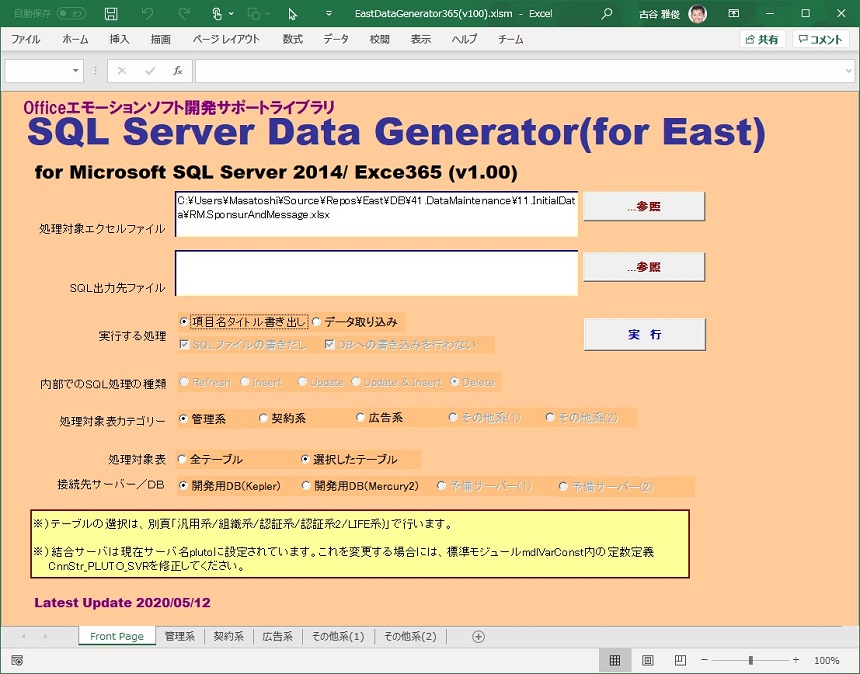
Step 1: First, we will show you the front screen of ExcelSQL, which is currently available as an Excel workbook with macros. The user will perform the following steps.
- The user specifies the name of the table for which the input sheet will be created in the worksheet at the back of the front page. The worksheet at the back of the page is named “Administration” or “Contracts”, which is the group name for grouping the tables. The user can set any name.
- Enter the path of the Excel workbook to be output in the “Excel file to process” text area.
- Select the radio button “Export item name title” in “Process to be executed”.
- Click the “Execute” button.
This is all you need to do to instantly create a data entry workbook at the specified path and make it active on your desktop. In the input workbook, all the input sheets for the specified table will be created.
The data entry sheet shows the name of the table and the names and data types of the input items. The primary key item can be easily identified because the header column is painted in light blue.
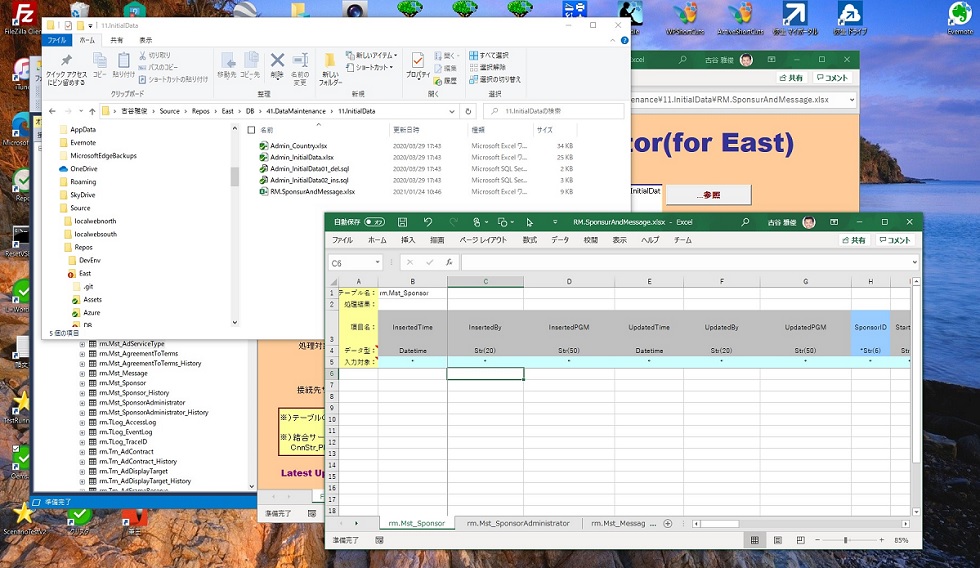
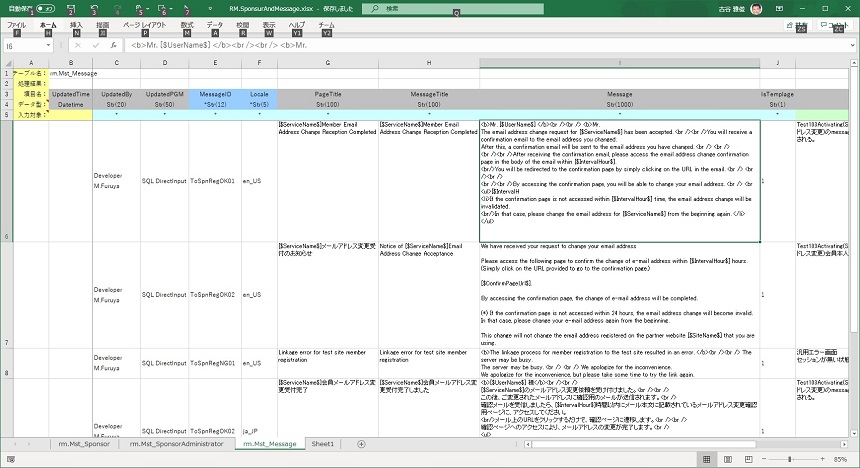
Step 2. Put the values of the data to be input into the input sheet of the Excel workbook for input. Let’s look at an actual example of setting input values. The following screenshot shows an example of setting the initial data for the message master used by the application.
- The UpdateTime in column B is automatically set by the database as a trigger for input or update, so clear the * in line 5. ExcelSQL will then remove this item from the SQL statement item setting.
- In “MessageID” of column E, an expression including a function to generate a sequential number like “=”ToSpnRegC” & Right(1000 + Row(C6) – 5, 3)” is set.
- The item “Message” in column I is a long string containing a newline code. (Excel is set to wrap this column and display the entire string.
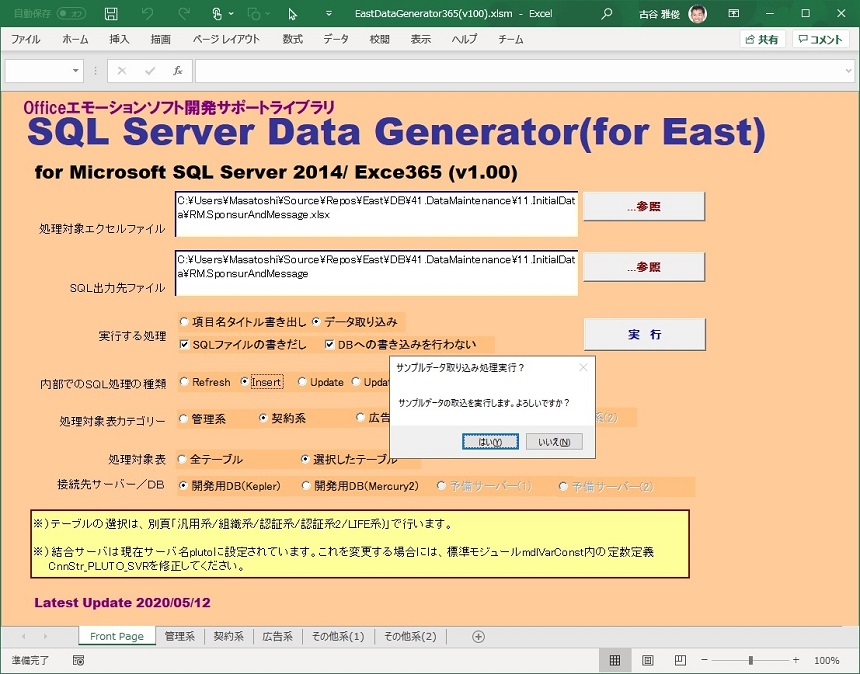
Step 3. In this state, return to the front page of ExceSQL and execute the following process.
- Specify the path of the SQL file to be output in the “SQL output destination file”.
- Specify “Write SQL file” and “Do not write to DB” as the process to be executed.
- Click “Execute”. When the “Execute sample data import process? Click “Yes (Y)” when the dialog box appears.
Step 4. The SQL file will be output. Load it into a client tool such as SQL Server Management Studio and execute it. When executing, check the processing results of each SQL statement on the tool screen.
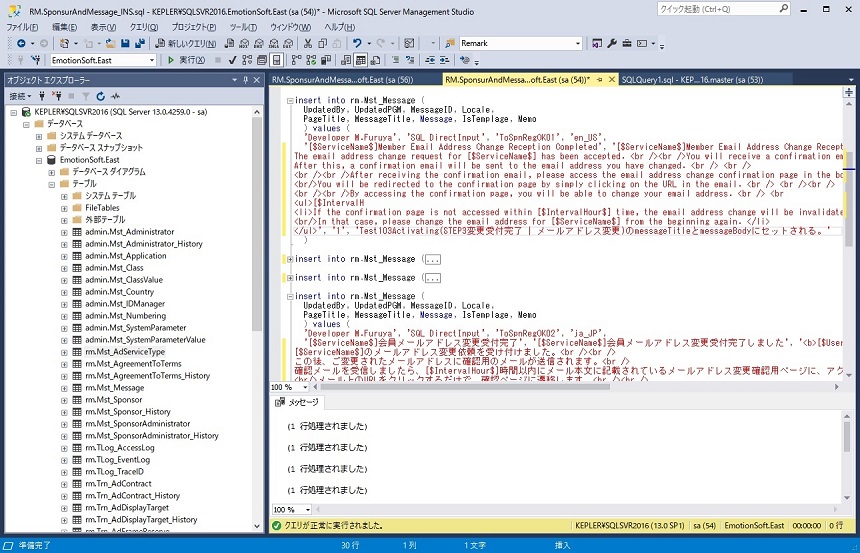
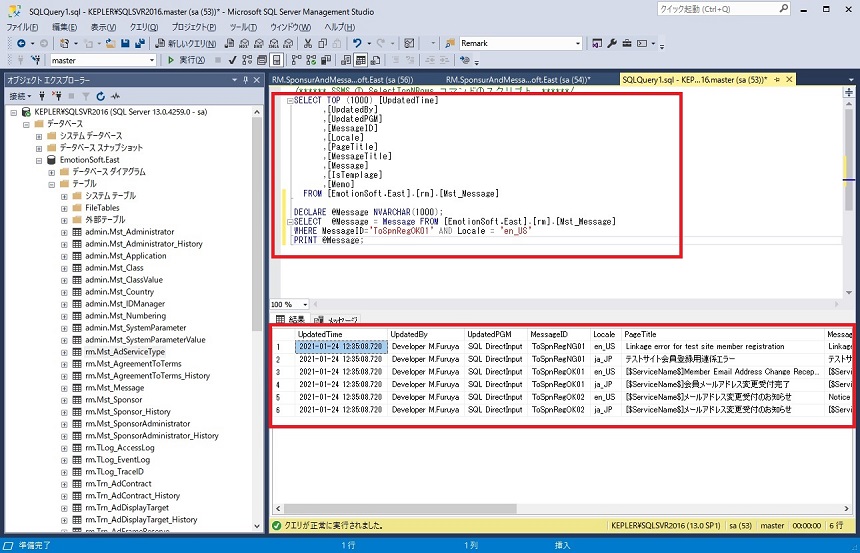
Step 5. Check the execution result with the client tool. You can see that the data specified in Excel is correctly set in the Message Master that is the target of this processing.
In addition to the above, there are other options to output SQL such as deleting and updating data, or “try to update and insert if there is no target to update”.
In addition to outputting SQL files, it is also possible to directly submit data from Excel SQL to SQL server. In this case, the success or failure of the process will be written to the last column of the input sheet, and for rows with errors, the reason for the error will also be written to the cell.
- The recommended method is to create a set of SQL for data entry and SQL for deletion. If some of the Excel data has errors and fails to be submitted, use the SQL for deletion to delete the submitted data. After that, the data is corrected and the SQL file for input is output again, and the data is submitted again.
What format will the finished version take?
The current version is created as an Excel workbook with macros. However, this format requires the user to specify some constants in the macros and change the properties of the worksheet names and front page controls in order to customize it for the application they are developing.
This is not a good practice as it risks breaking the original program. I still think that this tool should be provided as a stand-alone Windows application. In that case, I would like to be able to configure the following from the UI.
- Specify the DB to connect to (connection string and area setting. (However, since it contains a password, encryption is required for internal retention.
- Selection and grouping of tables to be processed.
- Automatically adjust SQL output order based on foreign key constraints when adding, modifying, or deleting tables that have parent-child relationships. (When data is added, the parent table is output first, and when data is deleted, the child table is output first.
Release Schedule
Scheduled for the fall of 2020.
