
ScenarioTest=Test automation tool for Visual Studio
- 1. ScenarioTest=Test automation tool for Visual Studio
- 1.1. What is ScenarioTest?
- 1.2. Transforming the Development Paradigm for Test Automation
- 1.2.1.1. A typical test automation execution cycle
- 1.2.1.2. Using ScenarioTest to Create Automated Tests from the Development Stage
- 1.3. Creating Automated Tests
- 1.4. A highly functional test runner
- 1.5. Extending the Selenium WebDriver
- 1.6. Extending MSTest
- 1.7. How to run automated tests
- 1.7.1.1. Build and run ScenarioTest as a Widows application.
- 1.7.1.2. Execute from the Test menu of Visual Studio.
- 1.8. Release Schedule
What is ScenarioTest?
ScenarioTest, provided by EmotionSoft, is a Visual Studio plug-in for creating automated tests for web applications. For users who create their own test automation programs, it enables them to embed various functions necessary for creating test automation programs with minimal code writing.

It is not only an extension library for test automation, but also has the potential to realize a new style of development in which you can start writing test automation programs at the development stage of the application’s unit functions. In this respect, ScenarioTest is a very unique product compared to other testing tools. So what can you actually do with ScenarioTest? Let’s take a look at some of its features.
Transforming the Development Paradigm for Test Automation
ScenarioTest makes it possible to create automated tests from the unit function development stage. This frees the development team from the monotonous repetition of functional and regression testing during application development and modification, and is expected to significantly improve productivity, reduce system development and maintenance costs, and raise morale on the development floor.
A typical test automation execution cycle
In general, when creating a new web application, automated tests are created opportunistically after the release of the main product. Therefore, at the time of the first release, all the integration tests and system tests are done manually. If a failure occurs before or after the release and a fix is made, this manual testing process will be executed again. After that, automated tests are mainly used for regression testing since the product release has been completed even if automated tests are created.
Later, after a certain period of time, if the web application needs to be modified and changes are made to the screen structure or behavior, there is an increased chance that a significant portion of the automated tests will stop working and as a result, all the tests will have to be run manually again. After the production release, the automated tests will be reworked, but the pattern is often that people get tired of continuing this cycle and abandon the maintenance of the automated tests and eventually go back to manual testing.
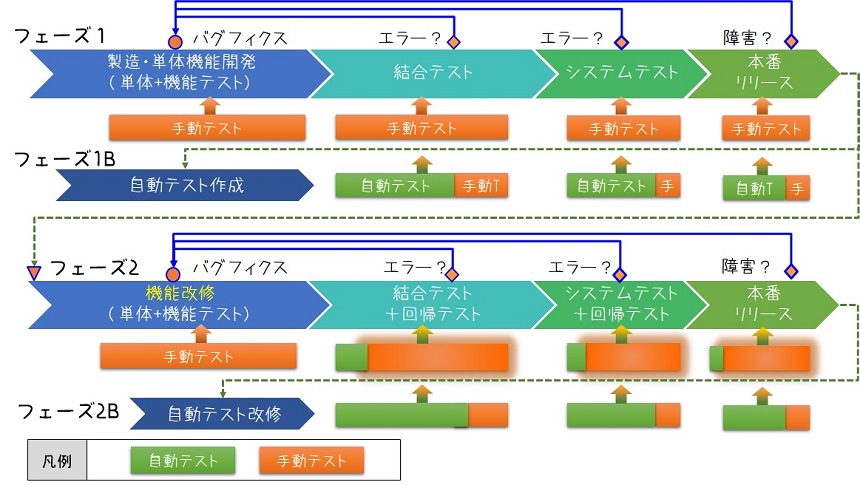
Problem 2: Whenever we make functional improvements, we need to improve our automated testing as well, otherwise we will be back to manual testing for most of the time after the integration test.
Based on ScenarioTest’s results, if we expand the percentage of tests that can be covered by automated tests to about three-quarters of the total test coverage, we can reduce the time cost of testing by less than half. However, in this model, automated tests are created after the production release, so it does not lead to any reduction in testing man-hours during the initial development or functional modification.
Using ScenarioTest to Create Automated Tests from the Development Stage
This situation is completely different if you use ScenarioTest to create automated tests during the development phase at the same time. NET web application, it can form part of the solution. This makes it possible to develop the application and the automated tests at the same time, and to use the automated tests during unit function verification on the development machine.
Moreover, ScenarioTest has a mechanism to dynamically switch the URL of the page to be tested and the specification of page elements according to the environment in which the web application to be tested is deployed, so the automated tests created during development can be used throughout the subsequent testing phase.
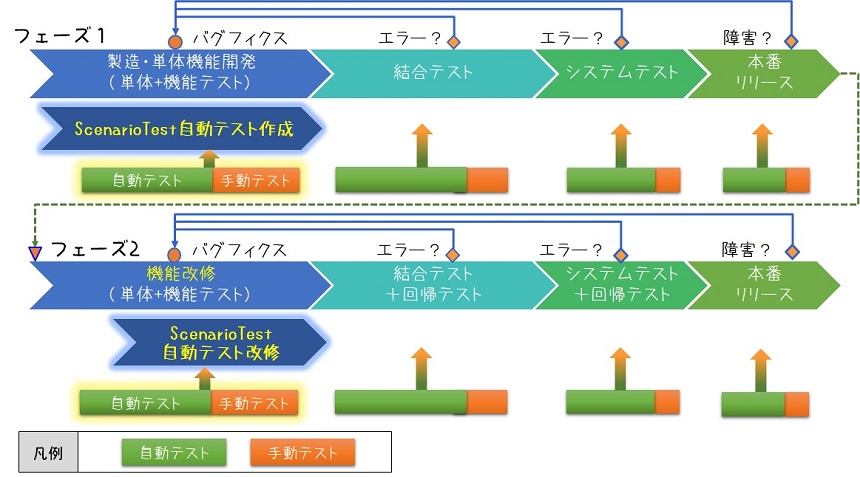
If we assume that the total man-hours for testing from unit function testing to integration testing and system testing is 30 man-days for manual testing, and the time reduction ratio by test automation is 50%, the man-hours for testing will be only 15 man-days.
Of course, there will be an increase in the man-hours required for making tests during development and modification, but the difference in test man-hours saved will be enough to pay for it. Moreover, since the tests can be used for regression testing when system changes or minor modifications are made in the future, the range of cost savings including operational costs will be very large.
Let’s take a closer look at ScenarioTest and see what it is all about.
Creating Automated Tests
The first thing that makes ScenarioTest useful is that you can easily create programs for test automation in Visual Studio. All you have to do is download the necessary extensions and select a test automation project from the templates. After that, you can create automated test programs in a similar way to how you create unit tests in MSTest. Let’s take a look at the steps below.
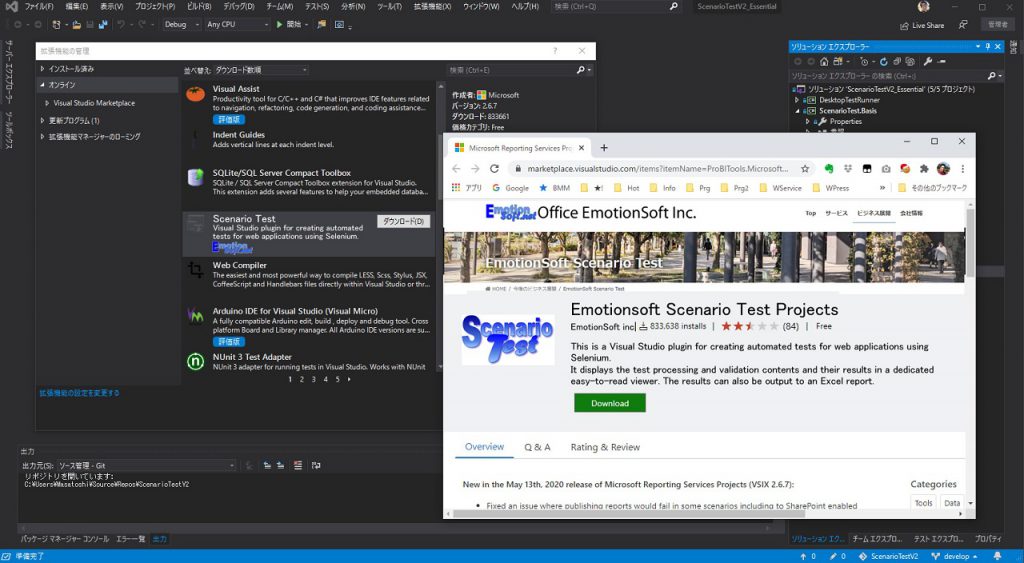
Step 1: To create an automated test program with ScenarioTest, first go to the Extensions Management menu in Visual Studio and search for ScenarioTest and install it.
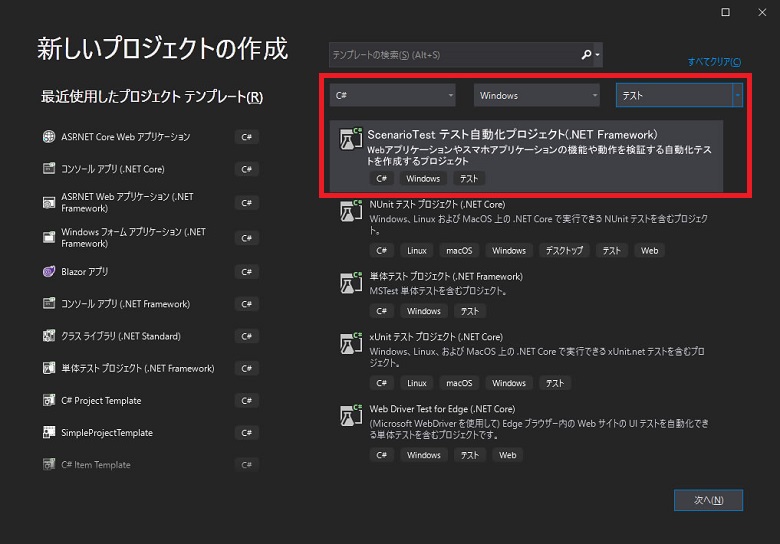
Step 2: As a result, when you select a new project in Visual Studio, if you select Language: C#, Environment: Windows, Category: Test as the search criteria for the template, “ScenarioTest.Test Automation Project” will be found. Select it and create a test automation project. After that, you can create the code for test automation by referring to the sample code optionally placed in the project or the technical information on the product website.
Step 3: When you have finished writing the test automation code (even if it is just to check the output content of an arbitrary area of a single web page) Try to run it for now. Once the build has passed and debugging is complete, select “Run ScenarioTest” from the Test menu in Visual Studio. Select the test you want to run in the tree on the left side of the screen and click the Run Test button to start the automatic test.
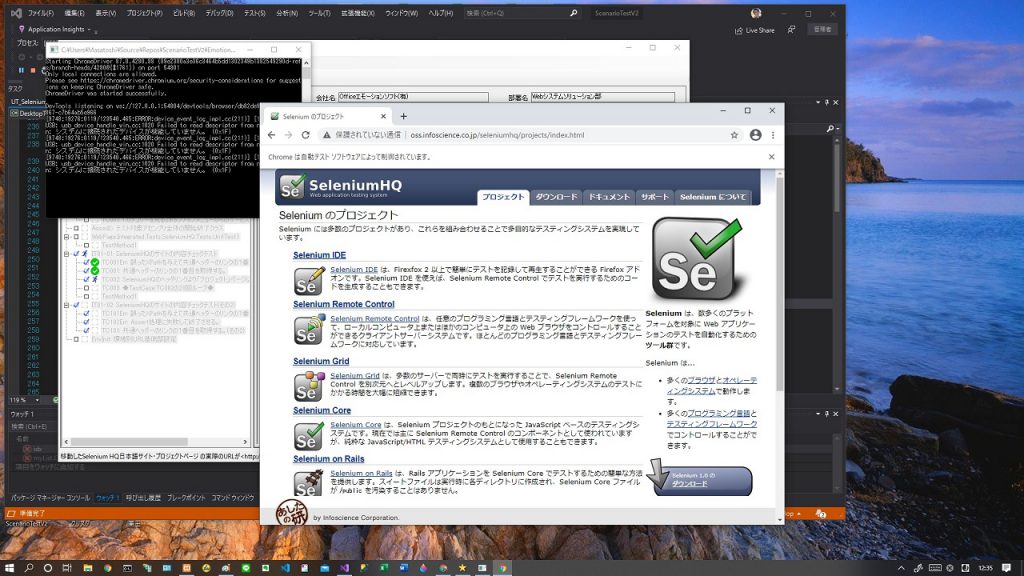
If ScenarioTest is installed as an extension, it takes only a minute to create an automated test from a template and run a sample automated test that is automatically created by default. Anyway, it’s “ready to use. The most important feature is that “you can use it right away” and “you can write the test code right away. This is the most important feature.
A highly functional test runner
Next, let’s take a look at ScenarioTest’s test runner screen. The test runner automatically displays a tree of all ScenarioTest test methods and test code included in the active solution in Visual Studio. The user can select any test class or test method from here and run it.
On the test runner, the user can select any of the browsers installed on the PC, such as Chrome, Firefox, or Microsoft Edge, as the browser to be used for testing, and can also select any environment for the program to be tested, such as development environment, integration test environment, or system test environment. In addition, you can select any environment for the program under test, such as development environment, integration test environment, or system test environment. (It is assumed that the application to be tested is uploaded to those environments.)
When the test is completed, the Test Runner displays the Execution Result Report of the specified test. In each test method, thanks to the extended WebDriver, all the operations executed by ScenarioTest will be displayed in the report in an easy-to-read text like “Set the value B in the input area A and click the button C. in the report.
In addition, when ScenarioTest is launched from Visual Studio, you can click on each line in the report to jump to the location of the source file. This is very useful when you are looking for a place where a verification error occurred or an exception was thrown.
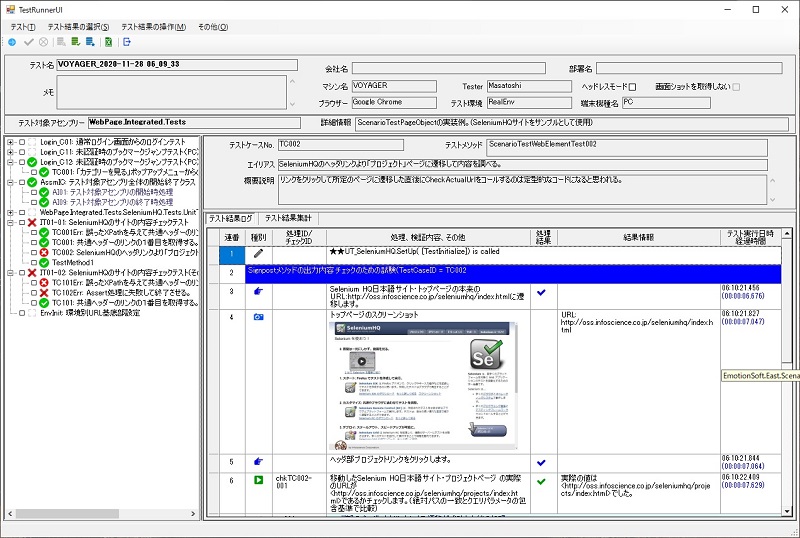
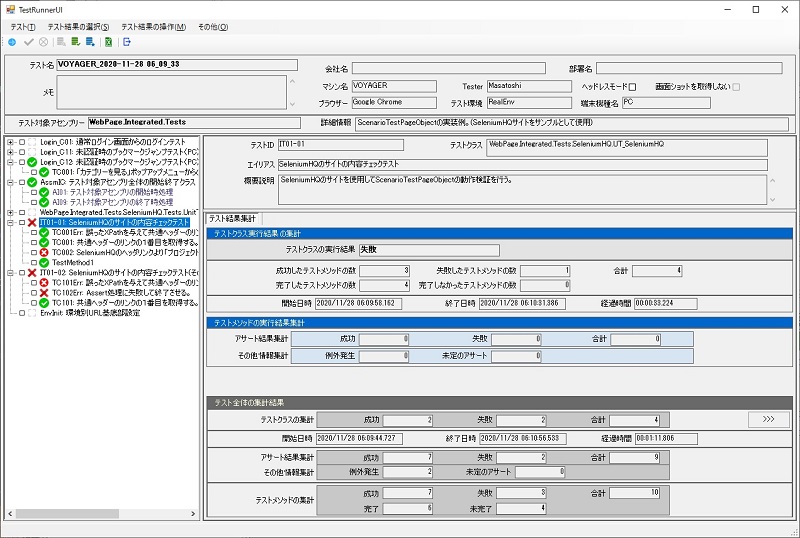
As for the verification, “Check if the text displayed in item C is equal to D. The result is E. The result was E. and the comparison between the expected value and the actual value will be output as text as well. In addition, the Test Report aggregates and displays the total number of executed processes and verifications and their success or failure for each individual test method, test class, and test solution (=Assembly).
Extending the Selenium WebDriver
ScenarioTest uses the extended Selenium WebDriver. This extended WebDriver records and reports on the processing of the elements on the web page to be manipulated. For example, “What values were set in which input area and which button was clicked? or “What values were output in the output area? and so on. Furthermore, the Assert result in the Test Report is not only the success or failure of the test, but also the verification details, expected value and actual value.
In addition, in rare cases, Selenium throws an exception when the XPath of a web element specified in the WebDriver fails due to browser differences. ScenarioTest handles the handling of such exceptions within the framework, so there is no need to write the handling of such exceptions on the user program side.
ScenarioTest recommends following the PageObjectModel (POM) pattern when writing test programs for web applications, and first create a PageObject class for the page to be tested. First, create a PageObject class for the page to be tested. At this point, define the elements in the page using the extended WebDriver.
Below is an example of creating a typical PageObjectModel class. (The highlighted area is where the elements of the web page are specified using the extended WebDriver.)
using OpenQA.Selenium;
using EmotionSoft.East.ScenarioTest;

namespace WebPage.Integrated.Tests.SeleniumHQ
{
    public class SeleniumHQTop : ScenarioTestPageObject
    {
        protected override string UrlBase => TestEnvManager.GetUrlBase("HQ");
        protected override string Url => this.UrlBase + "index.html";
        protected override string Alias => "Selenium HQ日本語サイト・トップページ";

        internal ScenarioTestWebElement CommonHeader
        {
            get
            {
                string alias = "共通ヘッダ";
                var xp = "//*[@id=\"header\"]";
                return this.Browser.FindElementEx(By.XPath(xp), alias);
            }
        }

        internal ScenarioTestWebElement HeaderProjectLink
        {
            get
            {
                string alias = "ヘッダ部プロジェクトリンク";
                var xp = "//*[@id=\"menu_projects\"]/a";
                return this.Browser.FindElementEx(By.XPath(xp), alias);
            }
        }

        internal ScenarioTestWebElement HeaderDocumentLink
        {
            get
            {
                string alias = "ヘッダ部ドキュメントリンク";
                var xp = "//*[@id=\"menu_documentation\"]/a";
                return this.Browser.FindElementEx(By.XPath(xp), alias);
            }
        }

        // ・・・ 省略 ・・・
Extending MSTest
ScenarioTest is an extension of MSTest, one of the most popular test frameworks in . NET testing framework, so you can write your test program in the same way as you would write a unit test in Visual Studio. Basic test program attributes such as [TestClass], [TestMethod], [TestInitialize], and [TestCleanup] can be used without modification. By adding ScenarioTest-specific attributes to these, we can make the test runner and reports more understandable.
In ScenarioTest, we have extended the Assert class. In it, there is an extension method that records the error contents and continues the test when a validation error occurs. If the verification error is not fatal to the continuation of the test execution, it is more efficient to continue the test itself. You can refer to verification errors in the test report, so that you can view the errors at a glance after you have run the test to the end.
ScenarioTest also provides a variety of methods to output arbitrary information to the report. You can insert text explaining the purpose of the process you are about to perform, or you can give each operation or test an arbitrary ID and output it in the report. This allows the tester to correlate the test report with the verification items in the test specification prepared in advance.
using EmotionSoft.East.ScenarioTest;
using STWE = EmotionSoft.East.ScenarioTest.ScenarioTestWebElement;
using System.Drawing;

namespace WebPage.Integrated.Tests.SeleniumHQ
{
    [ScenarioTest]
    [TestClassNote(TestID ="IT01-01",
        Alias ="SeleniumHQのサイトの内容チェックテスト",
        Description = "SeleniumHQのサイトを使用してScenarioTestPageObjectの動作検証を行う。")]
    public class UT_SeleniumHQ: ScenarioTestBase
    {
        [TestInitialize]
        public void SetUp()
        {
            // ブラウザを起動する
            BrowserManager.InitializeBrowser();
        }

        [TestMethod]
        [TestMethodNote(TestCaseID = "TC002",
            Alias = "SeleniumHQのヘッダリンクより「プロジェクト」ページに遷移して内容を調べる。", Description =
"リンクをクリックして所定のページに遷移した直後にCheckActualUrlをコールするのは定型的なコードになると思われる。")]
        public void ScenarioTestWebElementTest002()
        {
            Signpost("Signpostメソッドの出力内容チェックのための試験(TestCaseID = TC002", Color.Wheat, Color.Blue);
            var hqPage = new SeleniumHQTop();
            hqPage.NavigateToMe();
            hqPage.GetScreenShot("トップページのスクリーンショット");

            // ヘッダ部のプロジェクトリンクをクリック
            SeleniumHQProject nextPage = hqPage.ProjectLinkClick();

            // クリックした結果、正しくプロジェクトページに遷移していれば先の検証を行う。
            if (Assert.That.ExamineSoft(
                nextPage.CompareActualUrl(HttpStatusCheckLevel.Medium), "chkTC002-001"))
            {
                Note("ヘッダ部のプロジェクトリンクによる遷移が成功した後の処理", "wr001",
                    Color.Navy, Color.LightCyan, FontStyle.Italic);
                nextPage.GetScreenShot("プロジェクトページのスクリーンショット");

                Assert.That.Examine(nextPage.Title.Equals("Selenium のプロジェクト"));
                Assert.That.ExamineSoft(nextPage.ContentHedding.Text.Equals("Selenium のプロジェクト"),
                    "chkTC002-002");

                Note("エラーガイダンスの内容チェック(緩い検証)", "wr002",
                    Color.Navy, Color.LightSalmon, FontStyle.Italic);
                Assert.That.ExamineSoft(nextPage.ErrorContentGuidance.Text.Equals(
                    "Selenium には多数のプロジェクトがあり、これらを組み合わせることで多目的なテスティングシステムを実現しています。"),
                     "chkTC002-003");
                Assert.That.ExamineSoft(nextPage.ContentGuidance.Text.Equals(
                    "Selenium には多数のプロジェクトがあり、これらを組み合わせることで多目的なテスティングシステムを実現しています。"),
                   "chkTC002-004");
            }
        }

        // ・・・ 省略 ・・・
How to run automated tests
A test automation project can be executed in one of the following two ways.
Build and run ScenarioTest as a Widows application.
The test automation project created with the ScenarioTest project template is a Windows Forms application, and the test runner will be the startup screen. By default, the test runner automatically searches for ScenarioTest programs in the assembly and lists the executable test programs in the tree on the left side of the screen. From here, you can select any test class or test method to run.
Execute from the Test menu of Visual Studio.
When you install ScenarioTest as an extension, it will automatically add a “Launch ScenarioTest” sub-menu under the Test menu. Clicking on this submenu will launch the Test Runner, which will automatically search for all ScenarioTest programs in the current solution and list them in the tree on the left side of the screen as above.
This means that ScenarioTest will behave the same whether you build and run it as an application or run it from the Visual Studio menu. In both cases, a test runner will be launched and you can freely select and run any test you want. The only difference is that in the former case, it generates an automated test application. The generated application is a normal WindowsForms application that can be run as a standalone application, so it can be distributed to the operations team for regression testing when system settings are changed, for example.
- Of course, ScenarioTest does not require any license for the applications created using this tool.
Release Schedule
We plan to release the first version in the fall of 2021.
ScenarioTest has a roadmap for subsequent enhancements, including
- Support for .NET 5.0
- Support for Appium
- Support for Windows applications
- Adding the ability to configure the PageObjectModel from the GUI
- ・・・・
It may be a little while before you see it, but please look forward to it.
